> For the complete documentation index, see [llms.txt](https://docs.tresori.xyz/llms.txt). Markdown versions of documentation pages are available by appending `.md` to page URLs; this page is available as [Markdown](https://docs.tresori.xyz/project.md).
# Project
To begin using Tresori, users must first create a project. A project acts as a centralized workspace where all wallet-related configurations and resources are grouped.
The Projects section enables users to create and manage multiple projects, each corresponding to a specific application or environment. From here, users can configure wallets, manage API keys, customize the embedded wallet experience, and track transaction activity.
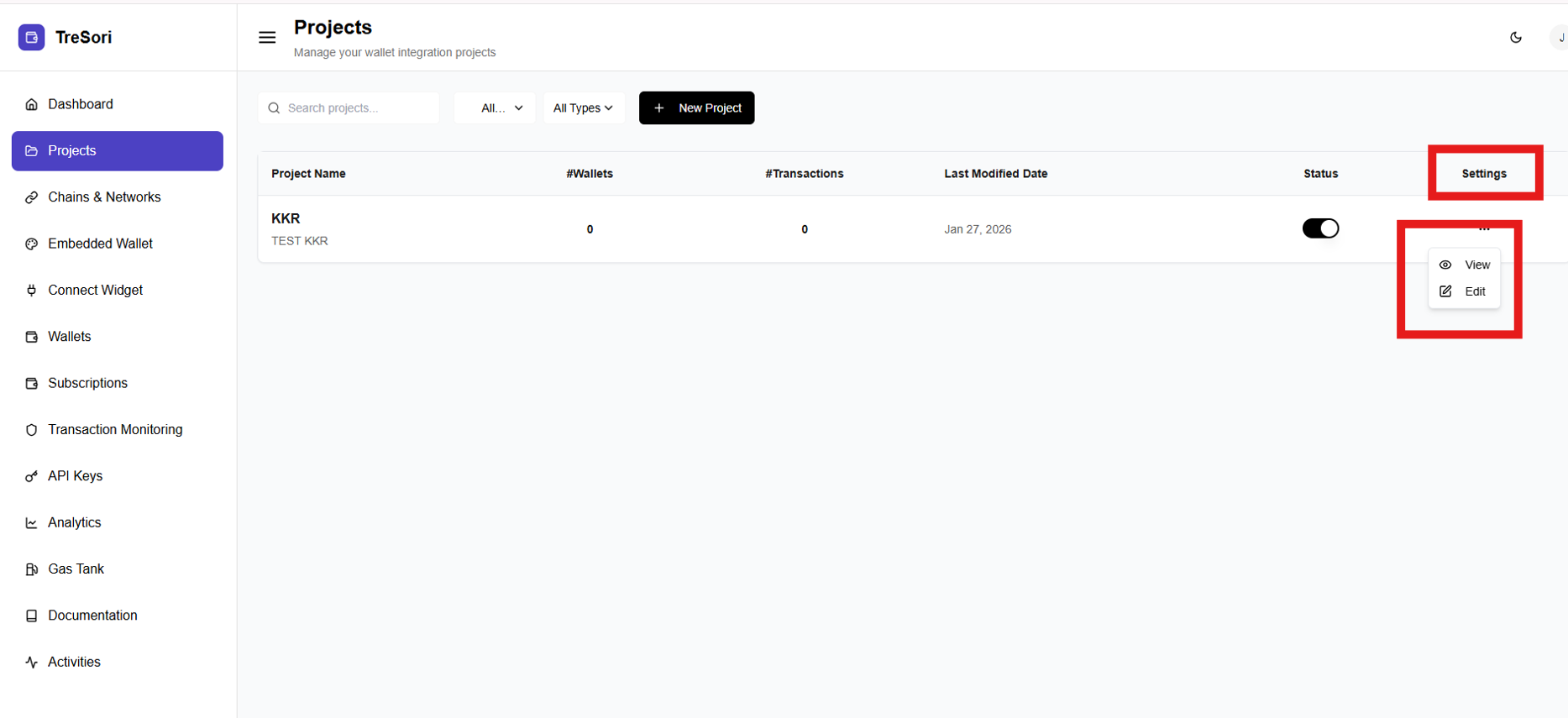
Each entry in the **Projects** list provides a summarized view of key project-level information to help users quickly understand the status and usage of their wallet integrations.
* **Project Name**\
represents the unique name assigned to the project at the time of creation, allowing users to easily identify and differentiate between multiple applications or environments.
* **Wallets**\
indicates the total number of wallets that have been created or are currently associated with the project, giving visibility into user adoption and wallet usage.
* **Transactions**\
Displays the cumulative number of transactions executed within the project, helping users track activity and operational scale.
* **Last Modified Date**\
shows the most recent date on which the project configuration was updated, enabling users to quickly identify recently changed or active projects.
* **Status**\
It is represented by a toggle that indicates whether the project is enabled or disabled. Only enabled projects are eligible for API key generation, embedded wallet configuration, and active wallet integrations. Disabled projects remain inactive and are hidden from selection dropdowns across the platform.
* **Settings**\
It provides access to additional project-level actions, such as edit and View project details.
When user click on the ellipsis menu (⋮) it will show the uer level informtion to get the basic information and editable actions.
1. **View**
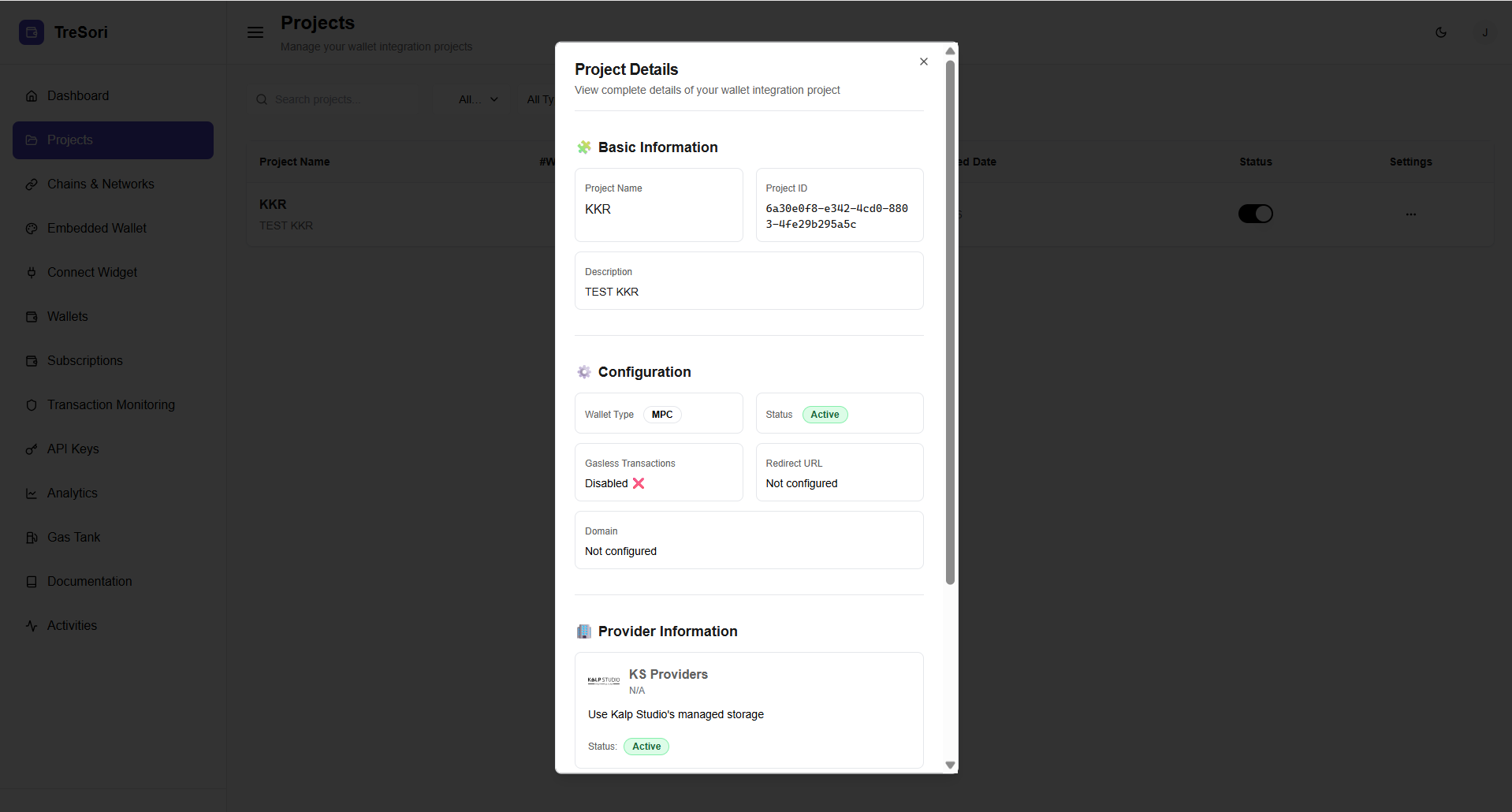
When the user clicks the **View** button, a **Project Details** panel opens, displaying high-level information about the selected project, as shown in the image below.
The Project Details view provides a **centralized snapshot** of the project’s identity, configuration status, and infrastructure setup, enabling users to quickly assess whether the project is ready for integration or deployment.
**Basic Information**
* **Project Name**\
Displays the user-defined name of the project (e.g., *KKR*), making it easy to identify the application or environment.
* **Project ID**\
A system-generated unique identifier assigned to the project.\
This ID is used internally for API references, integrations, and system-level tracking.
* **Description**\
A short description provided by the user to give additional context about the project (e.g., *TEST KKR*).
**Configuration Details**
* **Wallet Type**\
Indicates the wallet model used by the project (e.g., **MPC**).
* **Status**\
Shows whether the project is currently **Active** or inactive.
* **Gasless Transactions**\
Displays whether gasless transactions are enabled or disabled for the project.
* **Redirect URL**\
Indicates whether a redirect URL has been configured for authentication or post-login flows.
* **Domain**\
Shows the configured domain for the project. If not set, it is marked as *Not configured*.
**Provider Information**
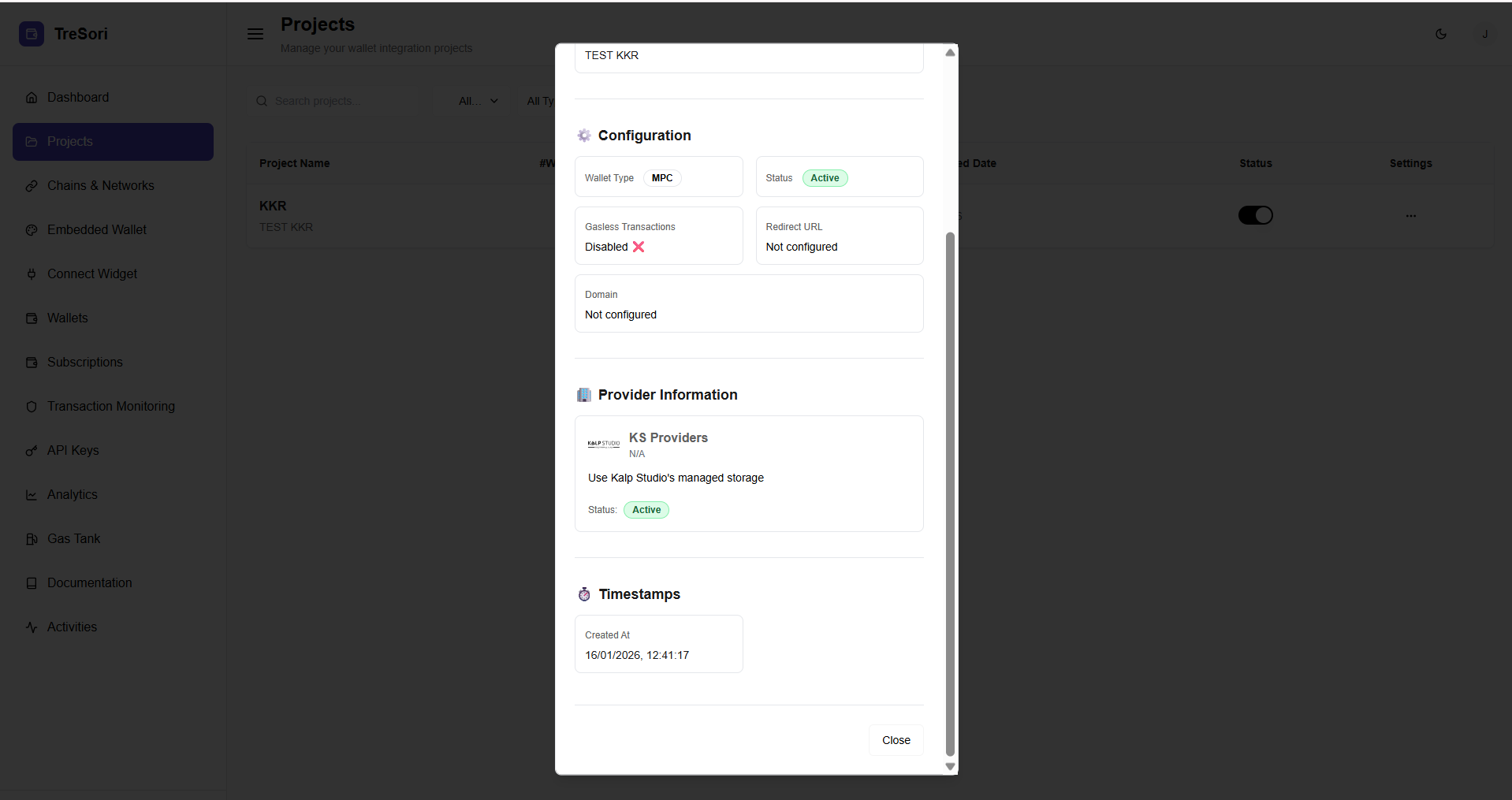
* **KS Provider**\
Displays the key storage provider being used (e.g., Kalp Studio’s managed storage).
* **Storage Mode**\
Indicates whether Tresori’s managed infrastructure is being used.
* **Provider Status**\
Shows whether the provider configuration is currently active.
**Timestamps**
* **Created At**\
Displays the exact date and time when the project was created.
2. **Edit**
When a user clicks the Settings menu for a project and selects Edit, they are redirected to the Edit Project screen. This screen enables users to modify and update the project’s configuration as application needs or business requirements evolve.
The Edit Project screen provides comprehensive control over the wallet setup, allowing users to update project details, change wallet types, and enable or disable gasless transactions—all without the need to create a new project.
**Basic Information**
This section allows users to update the core project details. These details help maintain clarity when managing multiple projects
* **Project Name**\
Displays the existing project name.\
This helps users quickly identify the project they are editing.
* **Description**\
Allows users to update or refine the project description to better reflect its purpose or environment.
**Wallet Configuration**
This section lets users configure the wallet model and key management approach for the project.
**Wallet Type Selection**
Users can choose between different wallet types based on their use case:
* **Self Custodial**
* **Custodial**
* **MPC (Multi-Party Computation)**
The currently selected wallet type is visually highlighted.
**Gasless Transactions Configuration**
* **Gasless Transactions Toggle**
* Allows users to enable or disable gasless transactions for the project.
* When enabled, end users can interact with the application without paying gas fees, improving onboarding and user experience.
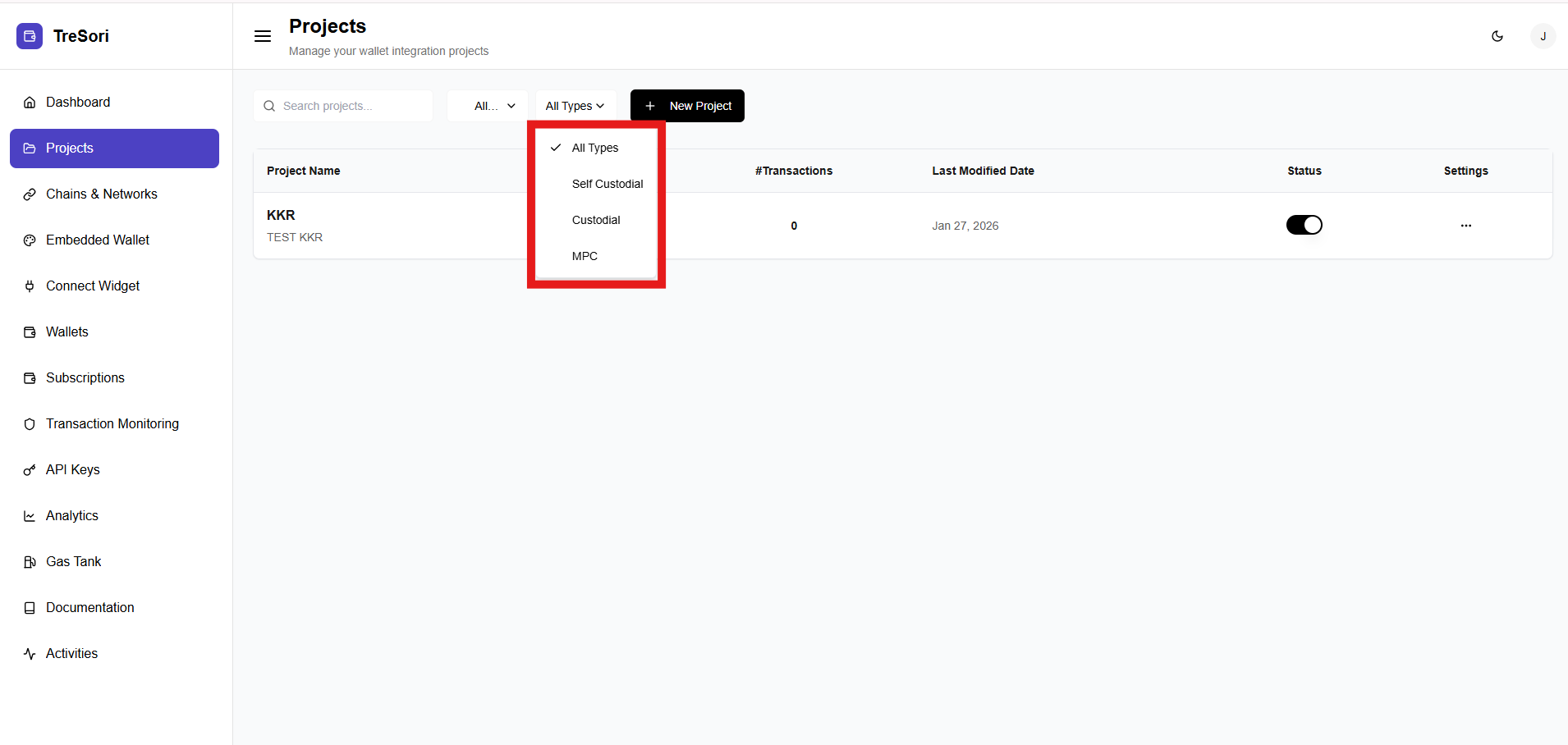
It also provides filtering options to help users quickly locate and manage projects based on wallet type and project status. These filters are especially useful when working with multiple projects across different environments.
The **All Types** dropdown allows users to filter projects based on the **wallet type** configured for each project.
**Available Options:**
* **All Types**
* This is the default view and displays all projects, regardless of the wallet type used.
* **Self Custodial**
* Shows only projects configured with **self-custodial wallets**.
* **Custodial**
* Displays projects using **custodial wallets**, where the platform manages keys securely.
* **MPC**
* Filters projects configured with **MPC (Multi-Party Computation) wallets**.
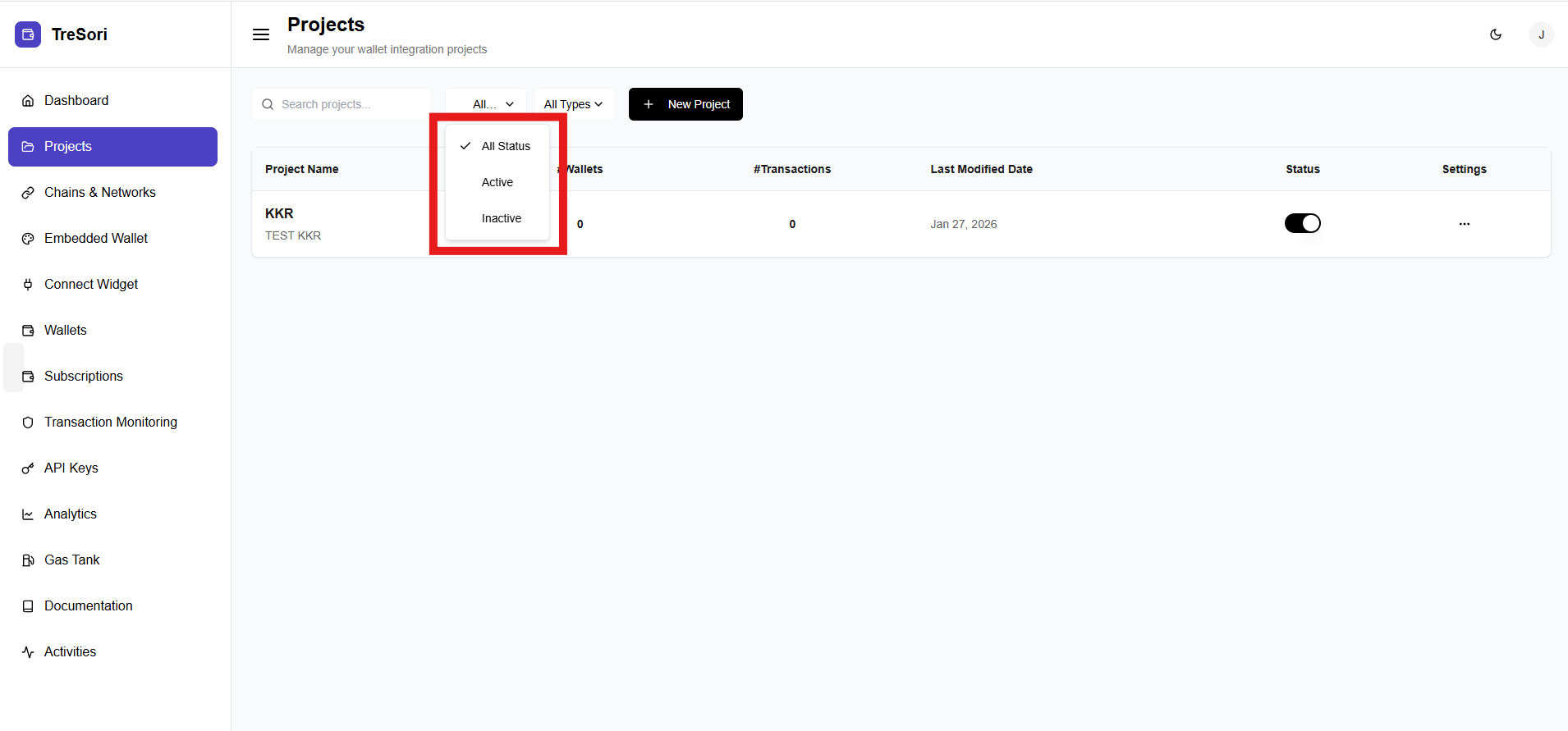
The **All Status** dropdown allows users to filter projects based on their **current operational state**.
**Available Options:**
* **All Status**
* This is the default selection and displays all projects, regardless of whether they are active or inactive.
* **Active**
* Shows only projects that are currently enabled and operational.
* **Inactive**
* Displays projects that are currently disabled.