> For the complete documentation index, see [llms.txt](https://docs.tresori.xyz/llms.txt). Markdown versions of documentation pages are available by appending `.md` to page URLs; this page is available as [Markdown](https://docs.tresori.xyz/connect-widget.md).
# Connect Widget
The Connect Widget allows users to configure and customize the “Connect Wallet” button that appears in their application. This widget acts as the primary entry point for end users to connect their wallet and begin interacting with the application.
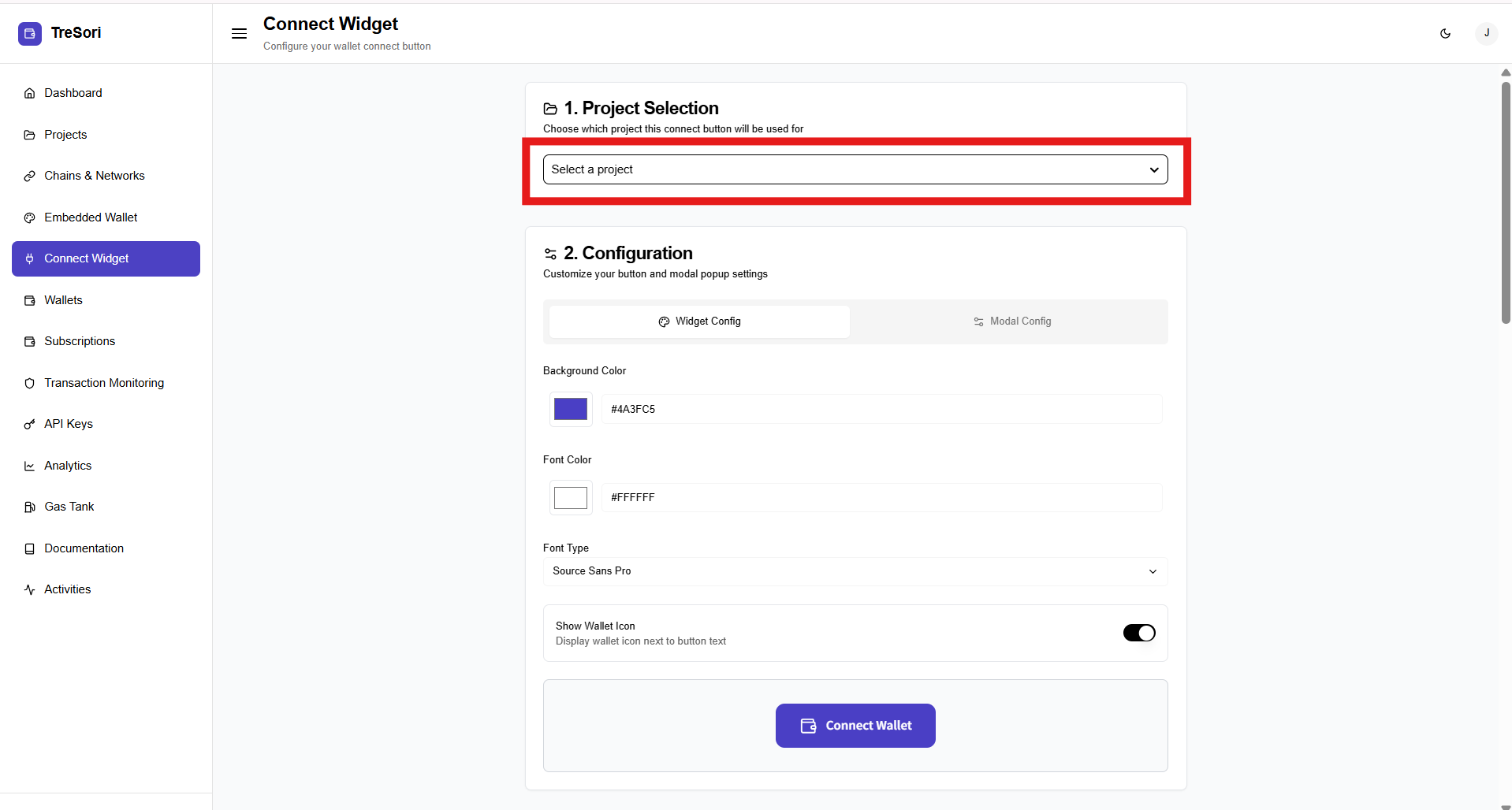
Before configuring the widget, users must associate it with a specific project.
* **Select a Project**
* Choose the project for which the connect wallet button will be used.
* The widget configuration and behavior will follow the wallet settings defined in the selected project.
> This ensures the connect button is correctly linked to the intended wallet configuration and environment.
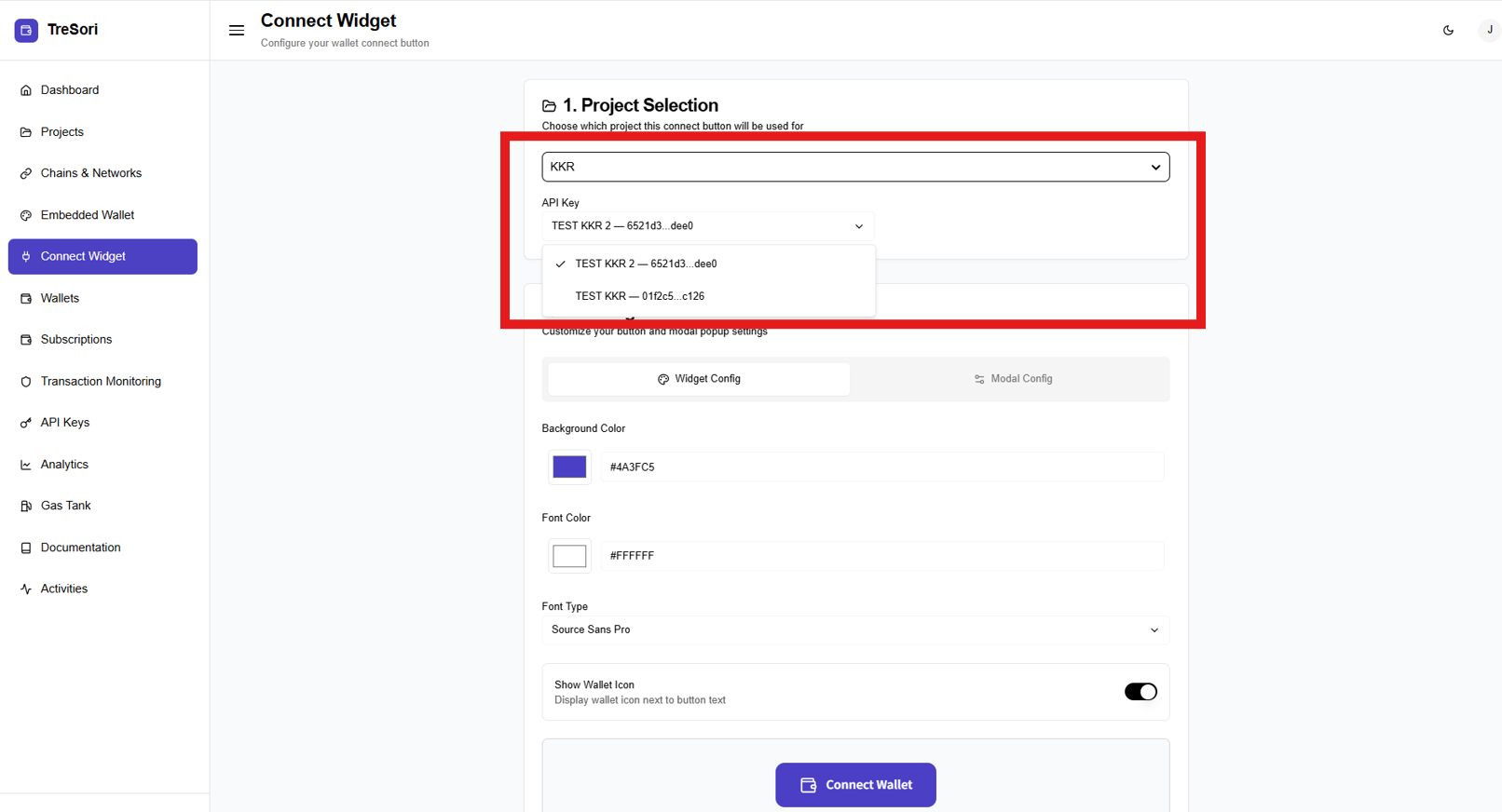
As soon as user select the project it will show the details of all availble API keys associated with that project.
#### Configuration
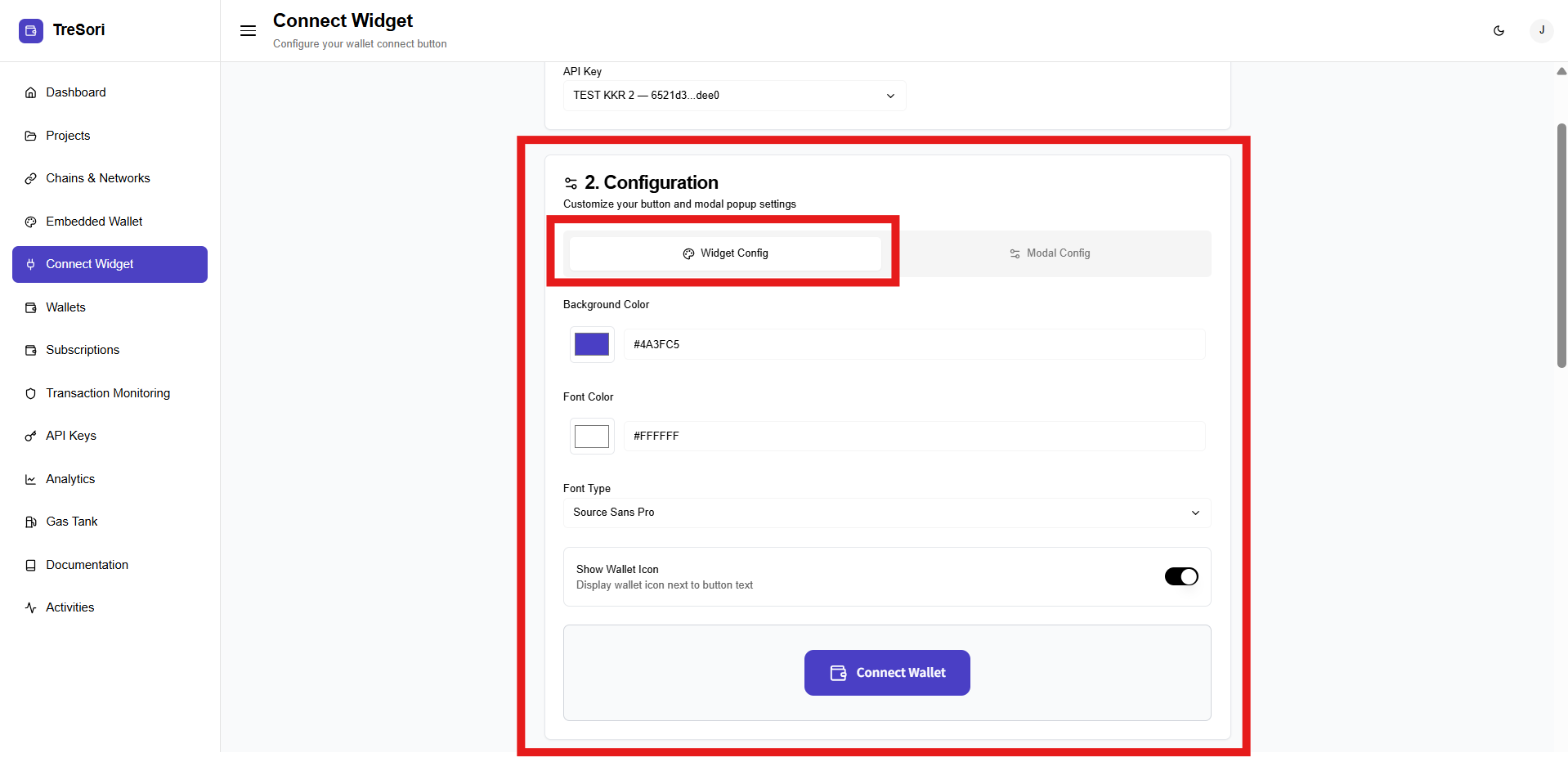
This section allows users to customize the **appearance and behavior** of the connect wallet button.
The configuration is divided into two parts:
* **Widget Config** (button styling)
* **Modal Config** (wallet connection popup behavior)
**Widget Configuration**
Used to customize the visual appearance of the connect button.
* **Background Color**
* Users acan defines the background color of the button.
* Users can provide hex color values for precise brand matching.
* **Font Color**
* Controls the text color displayed on the button.
* **Font Type**
* Allows users to select the font style used in the button text.
* **Show Wallet Icon**
* Toggle to display or hide the wallet icon next to the button text.
* Enhances visual clarity and user recognition.
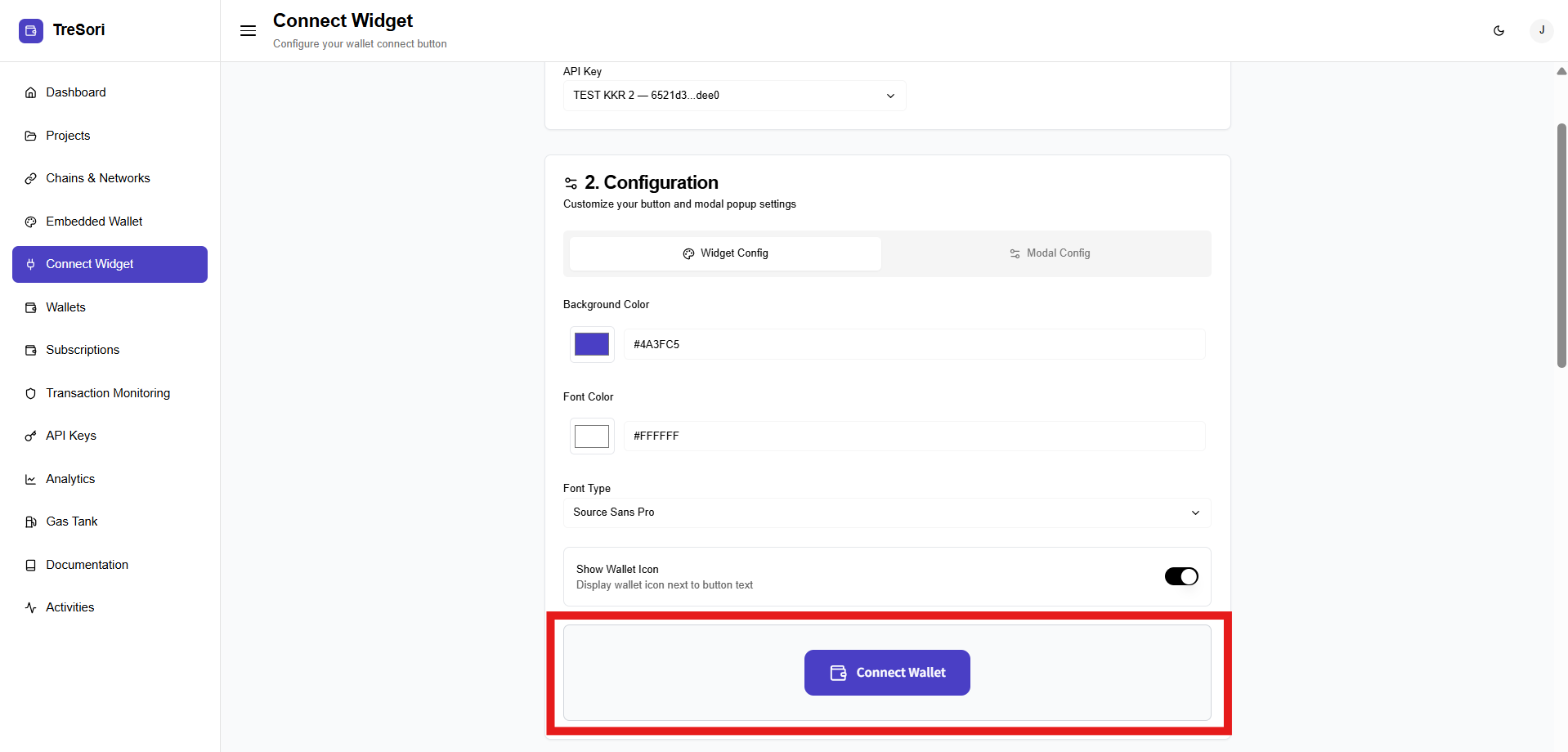
A **live button preview** is shown at the bottom, allowing users to instantly see how the button will appear after configuration.
#### Modal Configuration
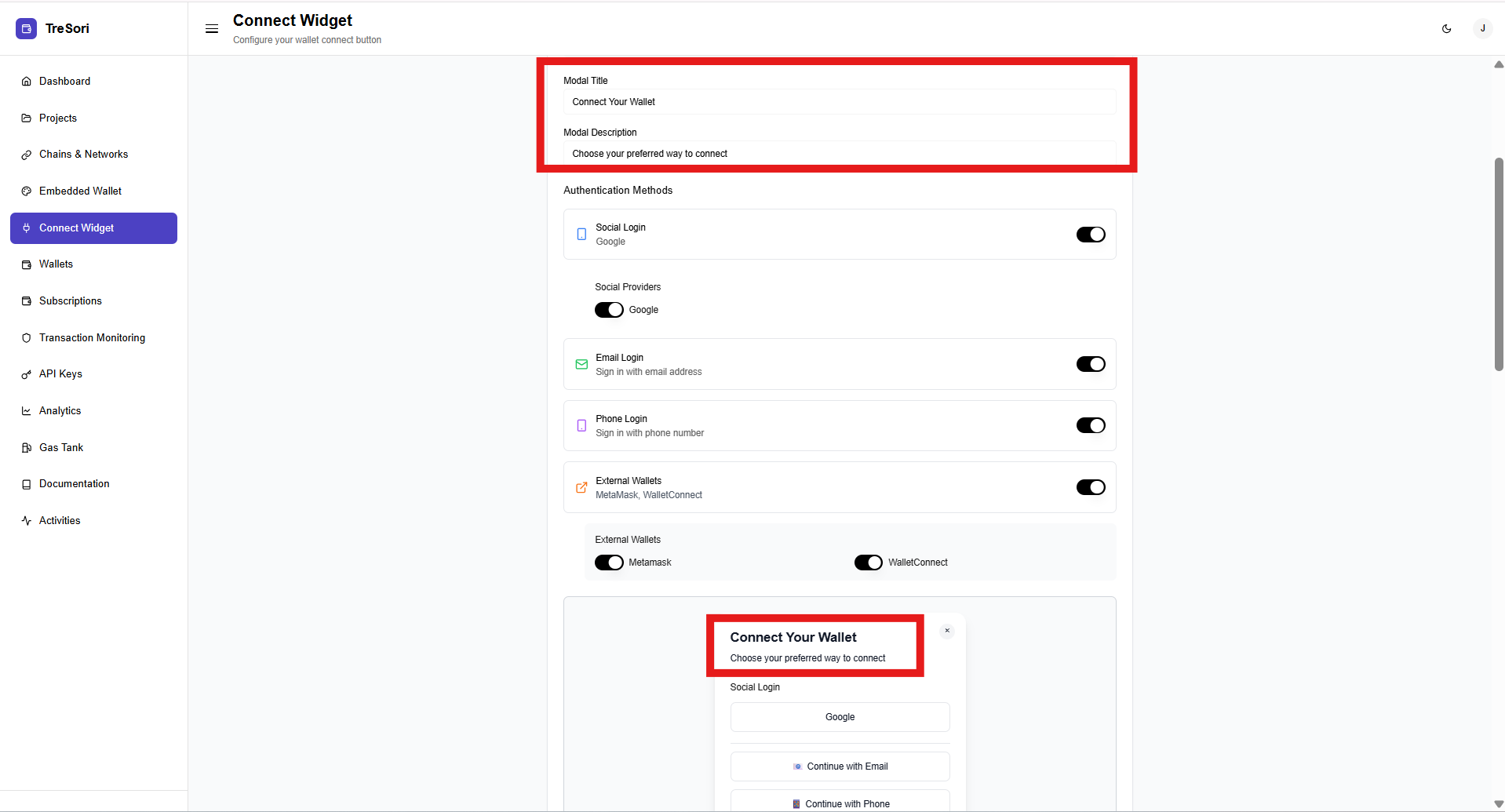
The Modal Configuration section allows users to customize the wallet connection modal that appears when an end user clicks the Connect Wallet button. This modal defines how users authenticate and which login options are available.
**Modal Content Settings**
These fields control the text displayed at the top of the wallet connection modal.
* **Modal Title**
* Defines the heading shown on the wallet connection popup.
* Example: *Connect Your Wallet*
* **Modal Description**
* Provides a short instruction or message to guide users.
* Example: *Choose your preferred way to connect*
> These fields help align the wallet connection experience with your application’s tone and branding.
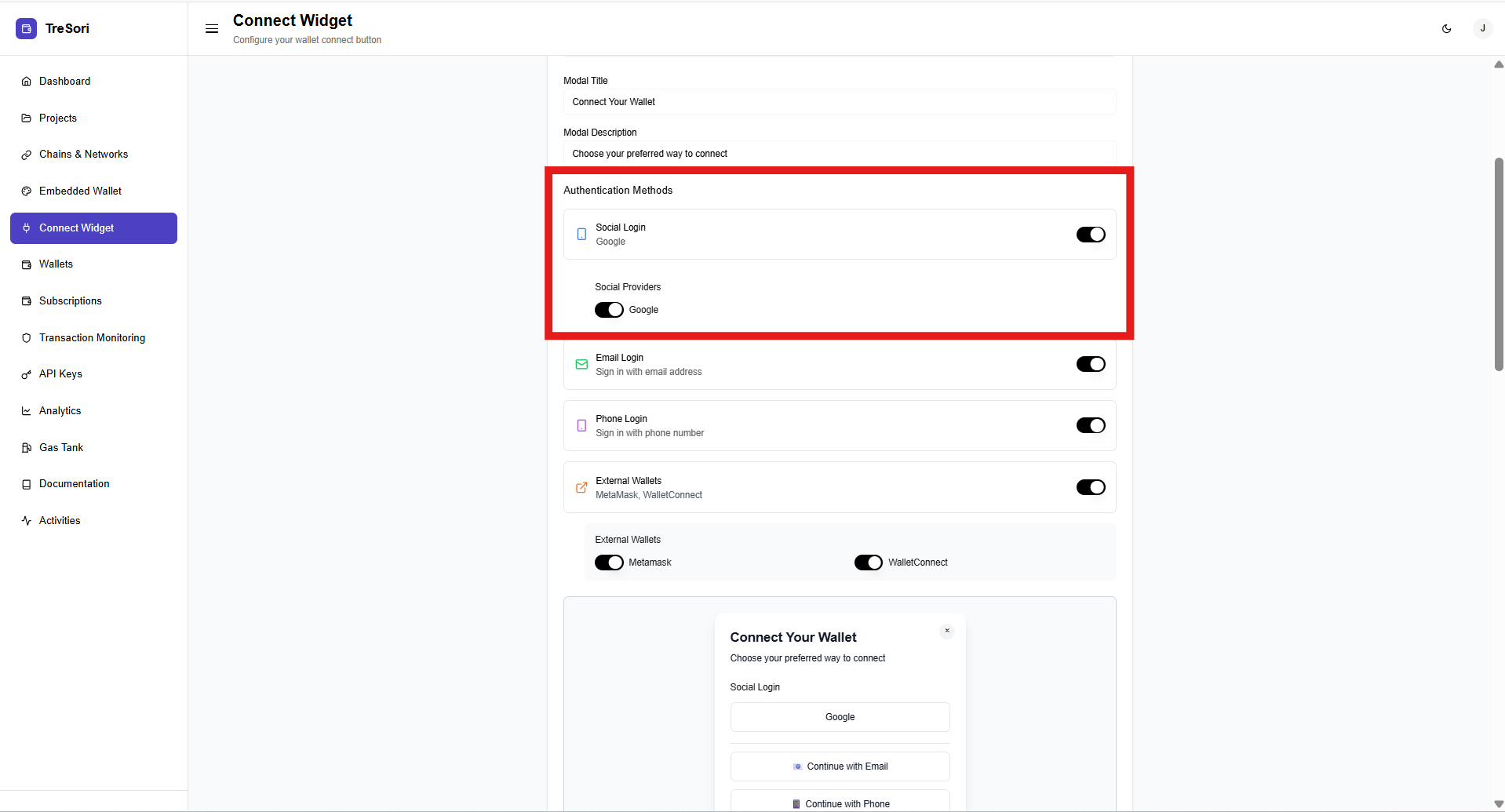
#### Authentication Methods
This section allows users to enable or disable different **wallet authentication options** available to end users.
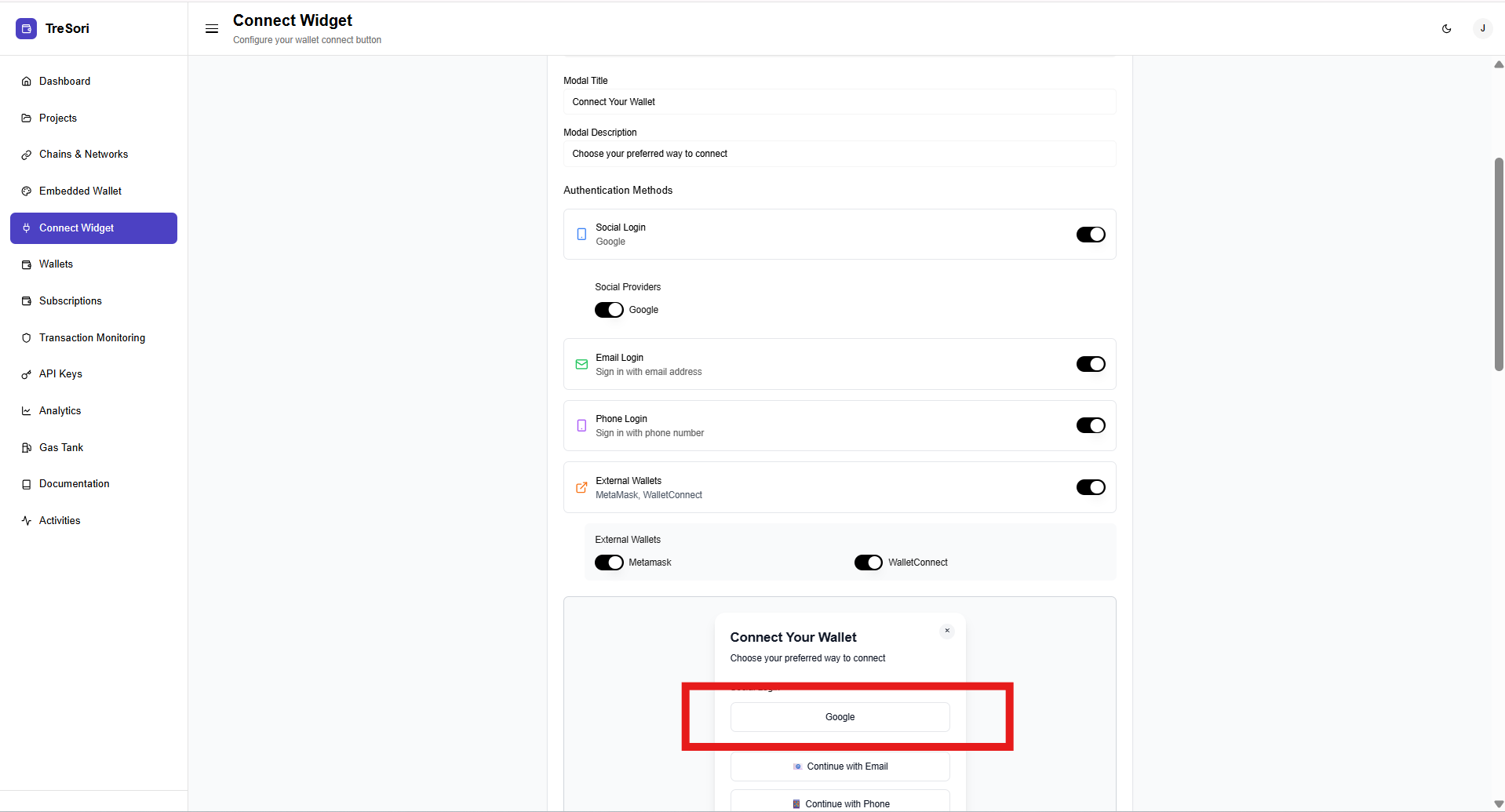
**Social Login**
* Enables social authentication methods for users.
* When enabled, users can sign in using their Google account (Default).
**Social Providers**
* Allows users to toggle individual providers (e.g., Google) on or off.
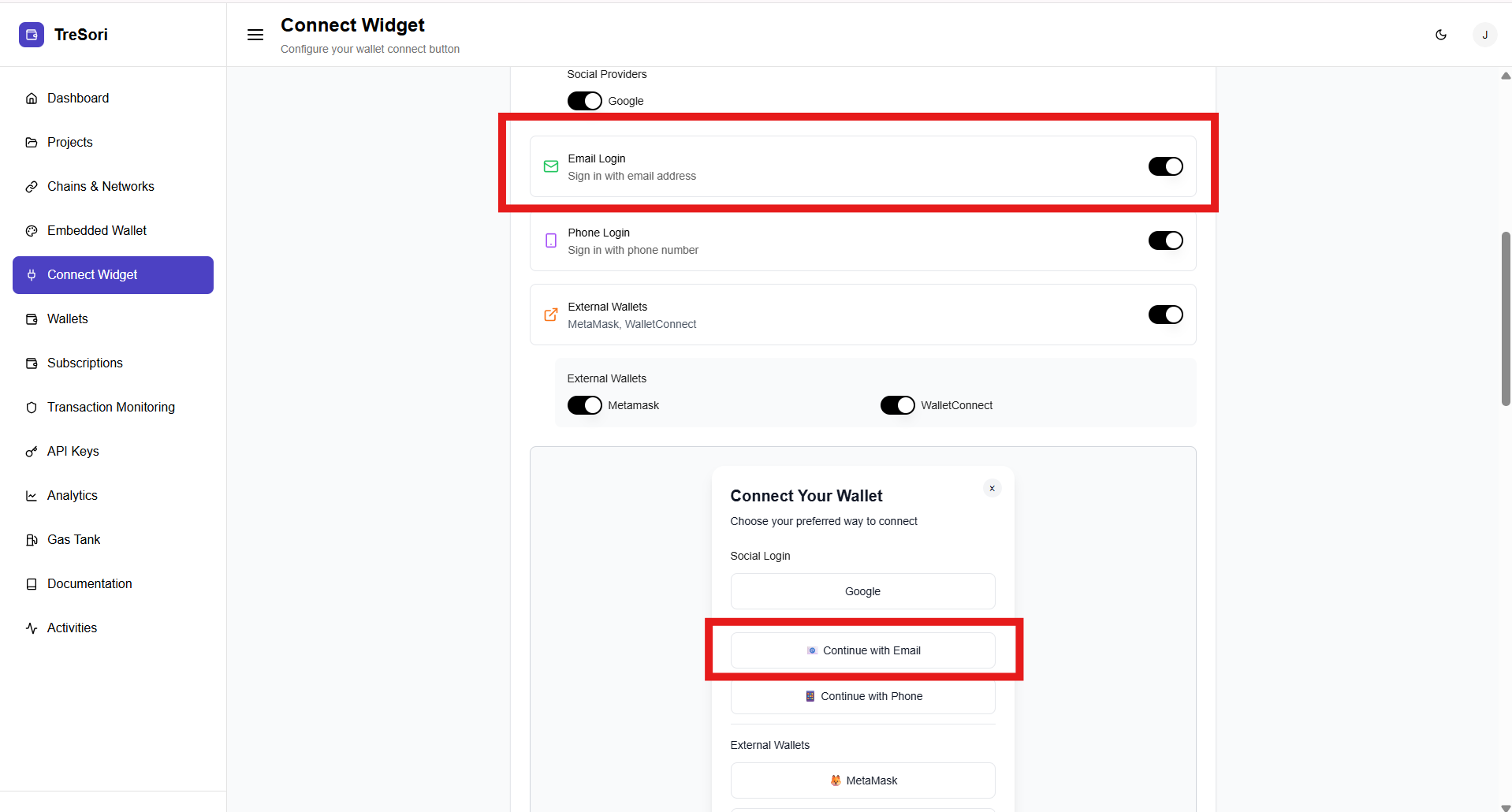
**Email Login**
* Allows users to sign in using their **email address**.
* Suitable for users who prefer traditional authentication methods.
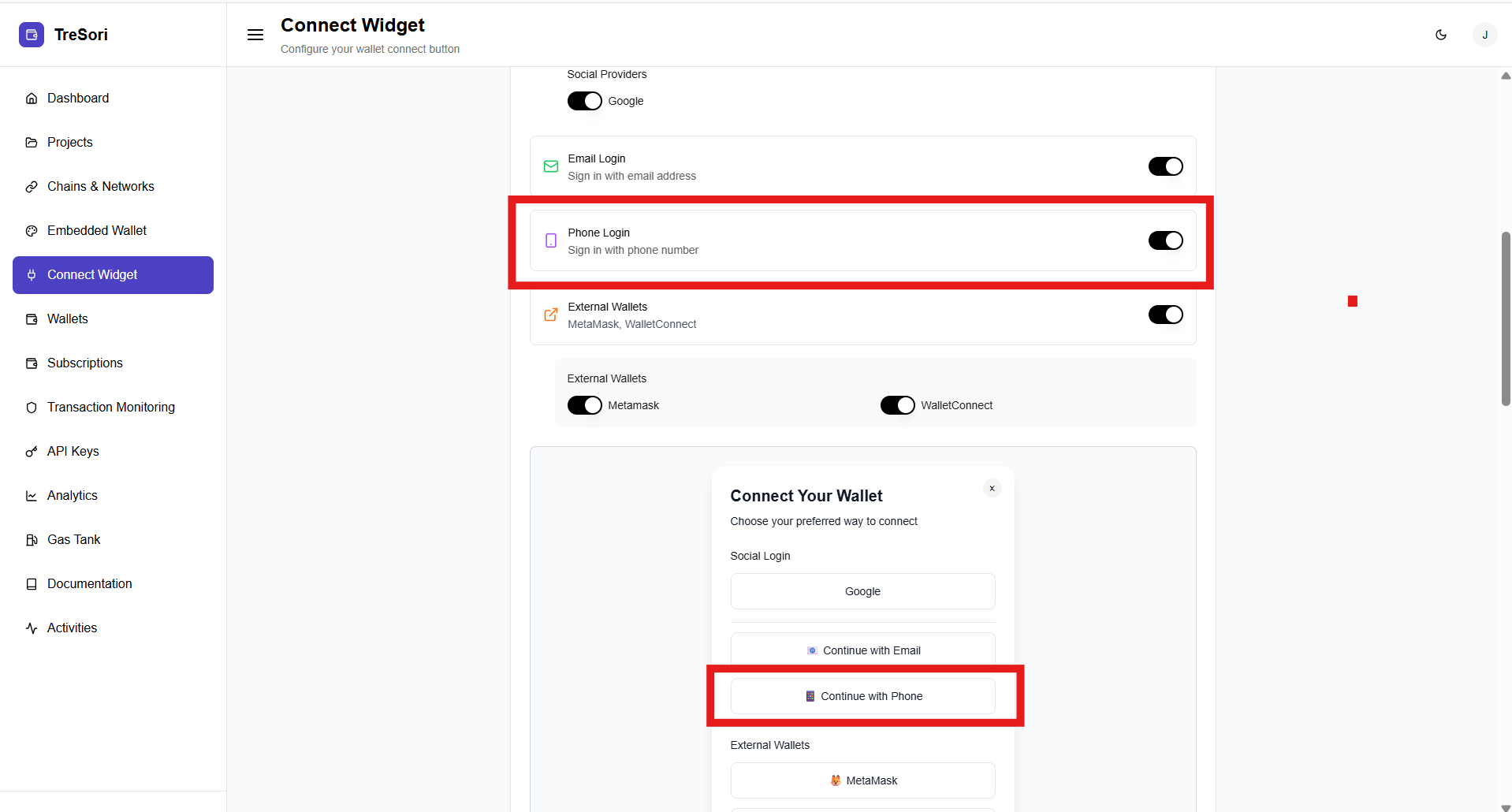
**Phone Login**
* Enables authentication using a **phone number**.
* Useful for mobile-first applications and regions where phone-based login is common.
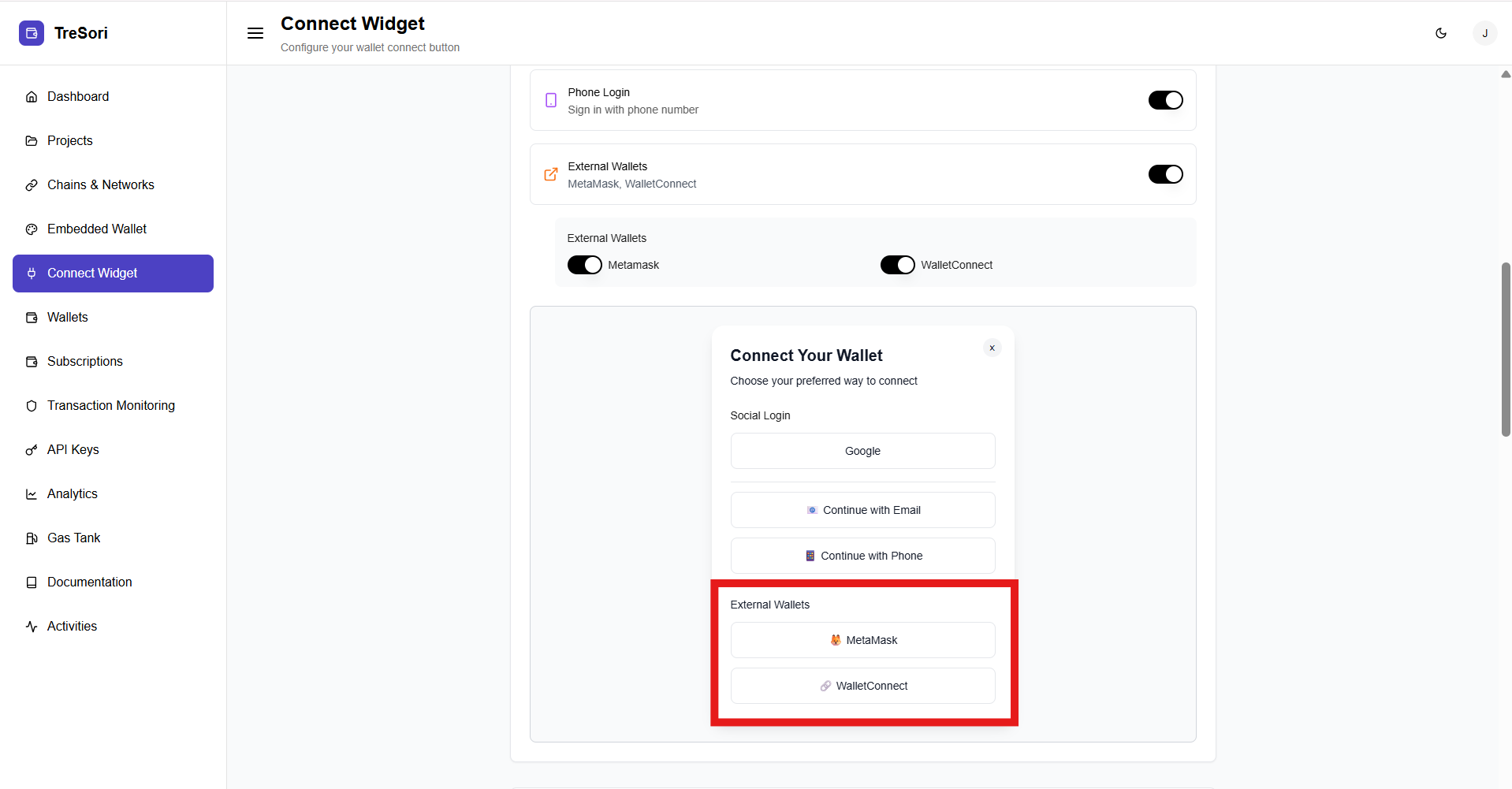
**External Wallets**
* Enables connections to **third-party wallets**.
* **Supported Wallets:**
* MetaMask
* WalletConnect
* Each wallet can be enabled or disabled independently.
> Only the authentication methods that are enabled here will appear in the wallet connection modal.
#### Code Export
The Code Export section provides ready-to-use integration code for embedding the Connect Wallet button and modal into your application. The generated code automatically reflects all configurations defined in the Widget Config and Modal Config sections.
Users can choose the integration format that best fits their application stack. This section provides step-by-step instructions embedded directly within the code snippet.
**Available Formats:**
* **HTML / JavaScript**
* Ideal for plain HTML websites or applications using vanilla JavaScript.
* **React / TypeScript**
* Designed for modern frontend applications built with React and TypeScript.
Switching between these tabs updates the code snippet accordingly.