> For the complete documentation index, see [llms.txt](https://docs.tresori.xyz/llms.txt). Markdown versions of documentation pages are available by appending `.md` to page URLs; this page is available as [Markdown](https://docs.tresori.xyz/embedded-wallet.md).
# Embedded Wallet
The **Embedded Wallet** section allows users to configure and customize the embedded wallet user interface for their application and generate the required integration code. This feature enables seamless wallet experiences within applications without requiring users to manage external wallets or private keys directly.
**Step-1: Select Project**
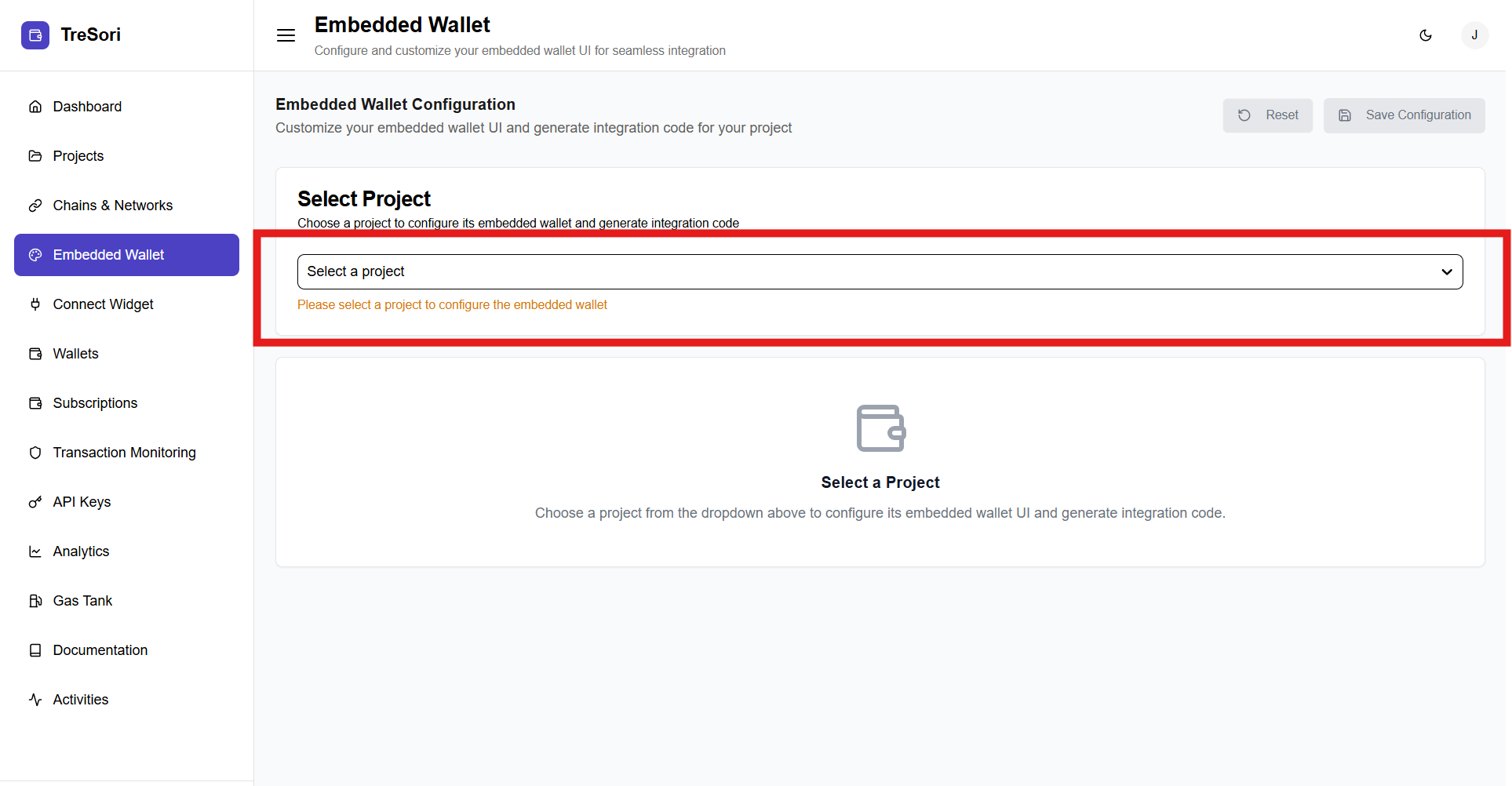
At the top of the screen, users must select a project to proceed with embedded wallet configuration.
* The **Select Project** dropdown lists all eligible and enabled projects.
* A project must be selected before any embedded wallet settings can be configured.
* If no project is selected, the system displays a prompt instructing the user to choose a project.
> **Note:** Embedded wallet configuration is project-specific. Each project can have its own wallet UI settings and integration setup.
Once the user selects that specific project, the wallet-specific related configuration will also be enabled, as shown in the image below.
#### Wallet Type Selection
**MPC (Multi-Party Computation)**
When **MPC** is selected:
* The wallet is created using **distributed key shares**
* No single private key ever exists in full
* Signing operations require multiple cryptographic parties
* Keys are protected even if one component is compromised
When the user selects the MPC, they need to provide the Specific details for the wallet configuration as well.
**Step-1:** **Select Blockchain**
This dropdown defines **which blockchain ecosystem** the embedded wallet will operate on.
* **ARBITRUM**
* **AVALANCHE**
* **BASE**
* **BLAST**
* **BSC** (Binance Smart Chain)
* **CELO**
* **CONFLUX**
* **ETH** (Ethereum)
* **KALP**
* **LINEA**
* **MANTLE**
* **OPBNB**
* **OPTIMISM**
* **PALM**
* **POLY** (Polygon)
* **SCROLL**
* **SEI**
* **STARKNET**
* **SWELLCHAIN**
* **TRON**
* **UNICHAIN**
* **ZKSYNC**
> Note: The displayed list of chains dynamically depends on the blockchain networks that the user has enabled for the selected project.
>
> For more: Go to [Chain & Networks](/chain-and-networks.md)
**Step-2:**
Once the user selects a blockchain, the associated networks are automatically displayed, allowing the user to proceed with the required configuration settings.
**Smart Wallet**
When **Smart Wallet** is selected:
* Wallets are deployed as **on-chain smart contracts**
* Transactions are executed via programmable logic
* Supports automation, policies, and gas abstraction
* Enables account-abstraction-style user experiences
The configuration is organized into multiple tabs:
* **Theme**: Customize colors, typography, and visual styling.
* **Branding**: Configure logos and brand identity elements.
* **Layout**: Control wallet UI structure and positioning.
* **Features**: Enable or disable supported wallet capabilities.
#### Color Theme
The **Theme** section under Embedded Wallet allows users to customize the visual appearance of the embedded wallet UI to match their application’s branding. All changes are reflected instantly in the **Live Preview**, enabling real-time visualization before deployment.
This section allows users to define the wallet’s look and feel:
* **Primary Color** – Used for main action buttons and highlights.
* **Secondary Color** – Applied to secondary actions and accents.
* **Background Color** – Sets the overall wallet background.
* **Text Color** – Controls readability and contrast.
* **Border Radius (px)** – Adjusts the roundness of UI components.
* **Font Family** – Selects the typography style for the wallet UI.
* **Dark Mode Support** – Toggle to enable or disable dark mode compatibility.
These settings ensure visual consistency with the host application.
### Live Preview
The **Live Preview** panel displays a real-time representation of how the embedded wallet will appear to end users.
* Reflects all theme changes instantly.
* Displays wallet login options such as:
* Social login (e.g., Google)
* Email or phone-based login
* External wallet connections (e.g., MetaMask, WalletConnect)
This allows users to validate UI changes before saving or deploying them.
#### Branding Configuration
The **Branding** section allows users to customize the embedded wallet interface with their organization’s identity. This ensures the wallet experience feels native to the application and builds user trust through consistent branding.
**Step-1: Provide Logo URL**
* Allows users to provide a direct URL to their company logo.
* The logo is displayed within the embedded wallet interface.
* Recommended formats include PNG or SVG for optimal clarity.
**Step-2: Set Company Name**
* Displays the organization’s name within the wallet UI.
* Helps reinforce brand identity during user authentication and wallet interactions.
Once the company name is entered, it automatically appears in the live preview panel, allowing users to instantly see how it will look.
**Step-3: Show Logo**
* Toggle to enable or disable the display of the company logo in the wallet UI.
* When disabled, the wallet is displayed without custom branding imagery.
**Step-4: Show “Powered by Kalp Studio”**
* Controls the visibility of the “Powered by Kalp Studio” attribution.
* Can be enabled or disabled based on branding and compliance requirements.
**Step-5: Enable T\&C & Privacy Policy**
* When enabled, users are required to acknowledge the Terms & Conditions and Privacy Policy.
* This is recommended for regulatory compliance and transparency.
#### Layout & Behavior
The **Layout & Behavior** section allows users to control how the embedded wallet interface is structured and how login options are presented to end users. This helps tailor the wallet experience based on user preferences, security needs, and application design.
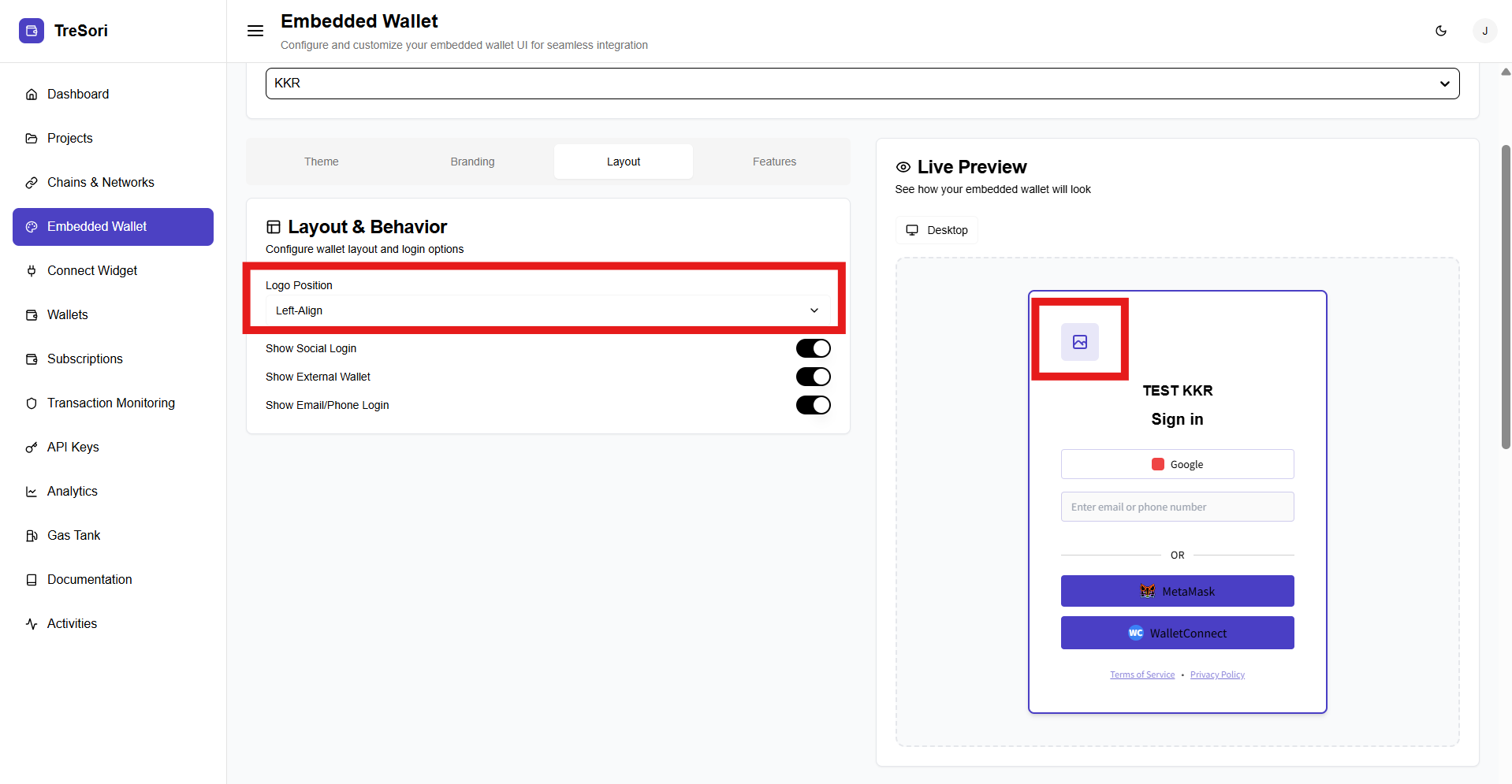
**Logo Position**
* It allows users to define where the logo appears within the wallet UI. This gives them two options:
* **Left-Allign**
* **Centre-Allign**
**Show Social Login**
* When it is enabled, social authentication options such as Google will be displayed, reducing onboarding friction and improving user adoption.
* When it is disabled.
**Show External Wallet**
The Show External Wallet option allows users to enable or disable support for connecting third-party wallets within the embedded wallet interface. When this option is enabled, end users can authenticate and interact with the application using external wallets such as MetaMask and WalletConnect, in addition to other available login methods.
**Enable**
When it is enabled, it gives the option to connect the wallet with third-party wallet applications, as shown below.
**Disabled**
When it is disabled, it only gives the default configuration of user onboarding as shown below in the image.
#### Features
The **Features** tab allows users to configure which **external wallet providers** can be used alongside the embedded wallet, giving end users flexibility in how they connect and authenticate.
Let users **select and manage third-party wallet integrations** that will be available to end users during login.\
**Available Wallet Providers:**
* **MetaMask**
* Enables users to connect using the MetaMask browser extension or mobile wallet.
* **WalletConnect**
* Allows users to connect a wide range of mobile wallets via QR code or deep linking.
Each wallet provider includes an **on/off toggle**, allowing precise control over which external wallets are supported.
#### **Toggle Behavior**
* **Enabled (ON):**
* The selected wallet appears as a login option in the embedded wallet UI. Users can authenticate using their existing external wallet.
* **Disabled (OFF):**
* The wallet option is hidden from the login screen.
All changes are applied **instantly** and reflected in the **Live Preview** panel.
#### Integration Code
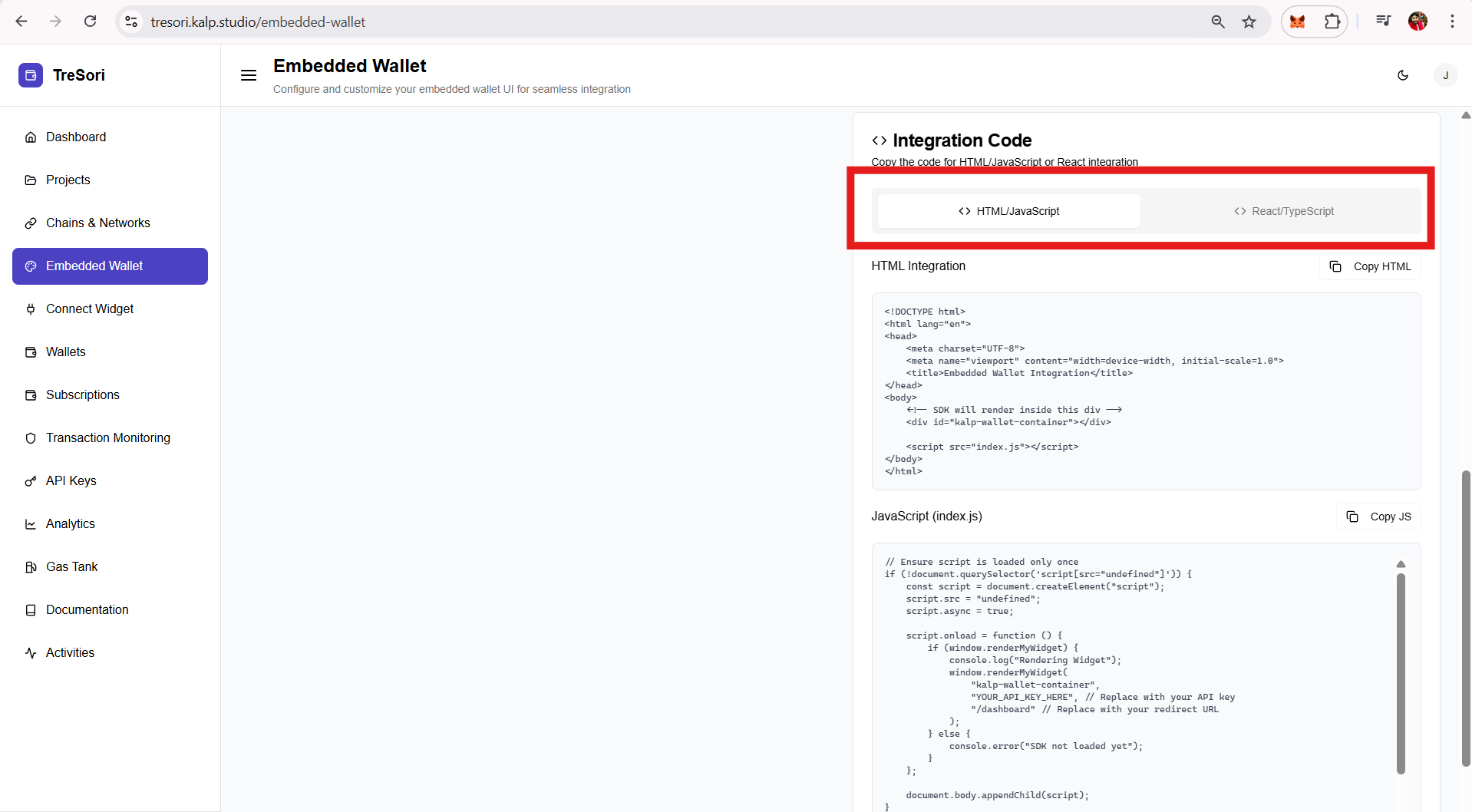
The Integration Code section provides ready-to-use code snippets that allow users to embed the Tresori wallet directly into their application. The generated code automatically reflects the selected project, enabled wallet features, and UI configurations.
Tresori supports two integration approaches:
* **HTML / JavaScript** – For plain HTML, vanilla JavaScript, or any web framework.
* **React / TypeScript** – For modern React-based applications.
Users can switch between these options using the tabs provided.
#### Save & Reset Actions
The **Save Configuration** action stores all current theme and UI customization settings for the selected project. Once saved, these settings are applied to the embedded wallet and reflected in the generated integration code, ensuring consistency across all environments where the wallet is used.
The **Reset** action restores all theme customizations to their default values. This allows users to discard any unsaved changes and quickly return to the default configuration, making it for correcting unintended modifications.